You are hereFile
File
Menu File
With this Menu you can do the following operations:
1. New
2. Open
3. Save
4. Save As…
5. Save All
6. Import
7. Export
8. Close
9. Quit
NEW
With this Action you can create a new File with extension .SPZ.
If there aren’t Files in the current Session, this Action activates the visualization of the TABS Pre-Processing, Data Input, Calculate e Post-Processing.
The name of the File is requested. If the chosen File exists, it is overwritten by an empty Session File.
If the File is already open, it is displayed a confirmation message of the operation that allows to overwrite data contained in the File on disk and in the current Session.
This Action is not active in the case in which the Software wasn’t activated. The New File contains the empty default Data Sets.
OPEN
Whit this Action you can load data of a .SPZ file.
If no File are present in the current Session, this Action activates the visualization of the TABS Pre-Processing, Data Input, Calculate e Post-Processing.
The name of the file to Open is requested. If it is already Open, it is displayed a confirmation message of the operation that allows to overwrite data contained in the current Session.
SAVE ALL
With this Action you can Save all Opened Files.
CLOSE
With this Action you can Save data.
After the possible storage, data relative to the closed File are deleted.
If no File are present in the current Session, this Action deactivates the visualization of the TABS Pre-Processing, Data Input, Calculate e Post-Processing.
QUIT
With this Action you can Save all data of the Current Session.
As shown in Figure 1, only selected Files (default none) are saved.
The pressure of the “X” icon that allows the closure of the program, activates the same Action.
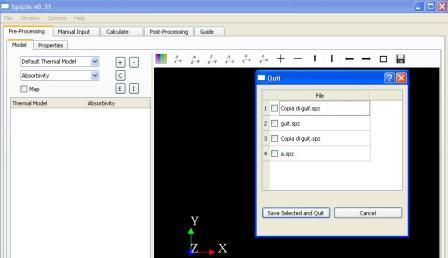
Figure 1